
Sharraxaad
Mintage Pay lets your customers pay with stablecoins (USDC and USDT) and, where your account offers them, by card or Cash App. The money goes straight to your own wallet. Mintage Pay never holds it.
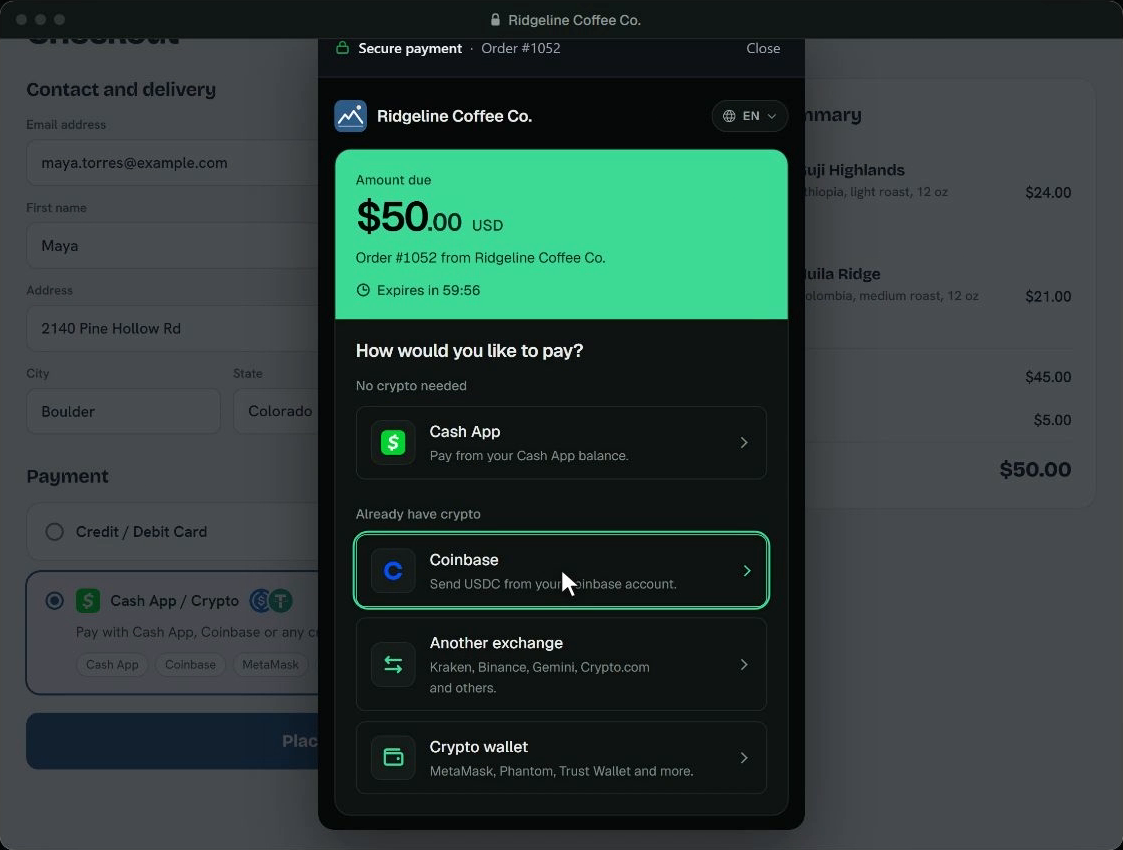
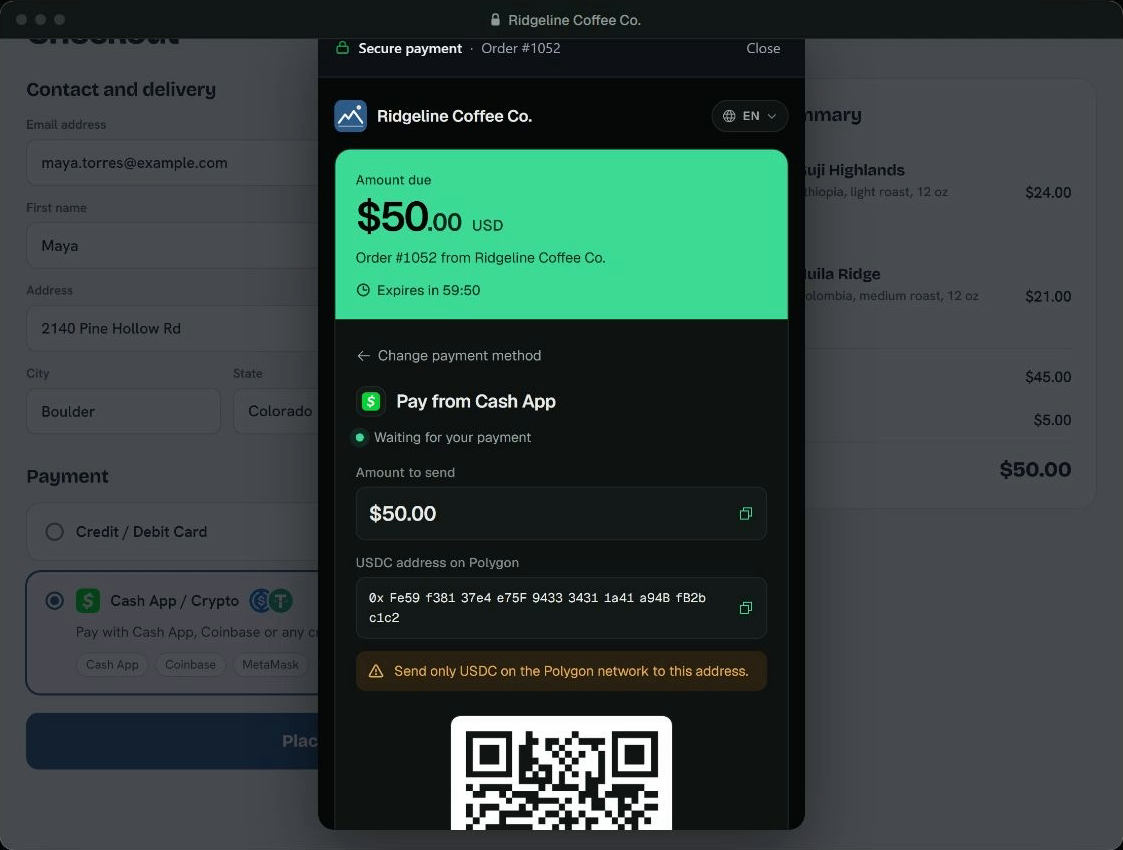
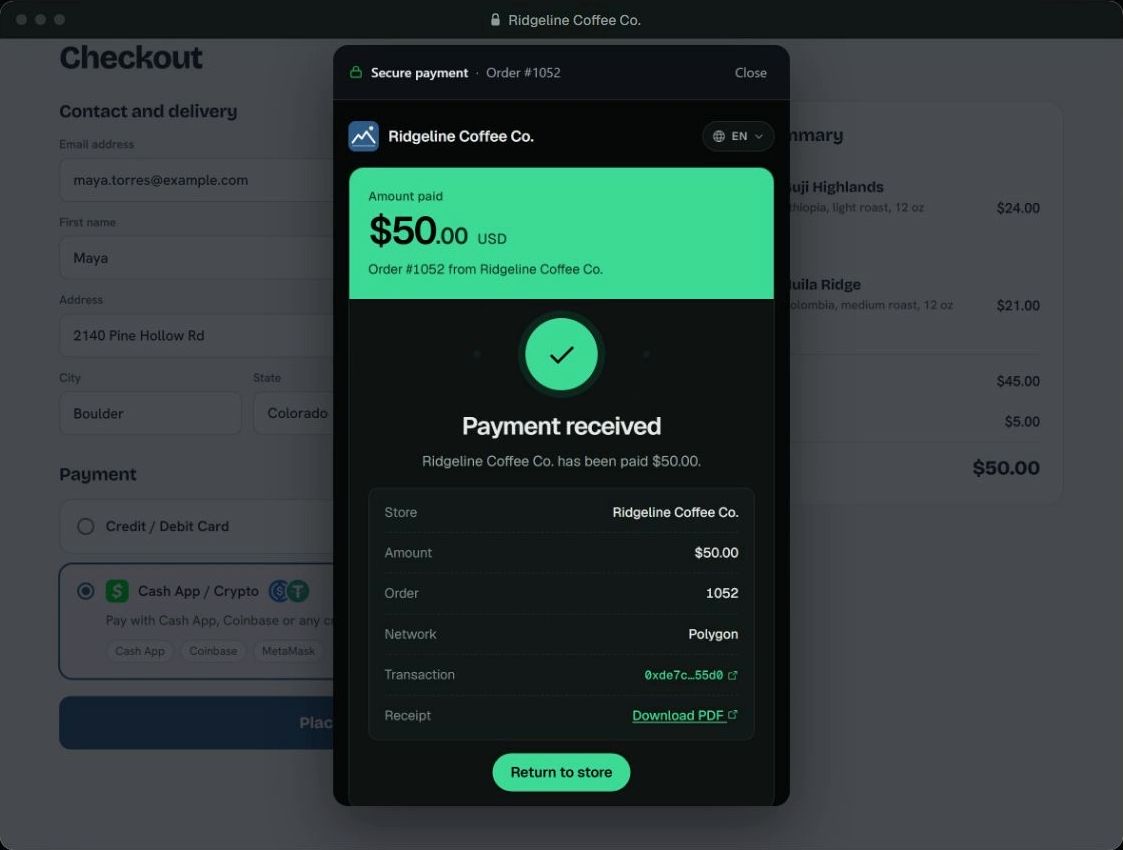
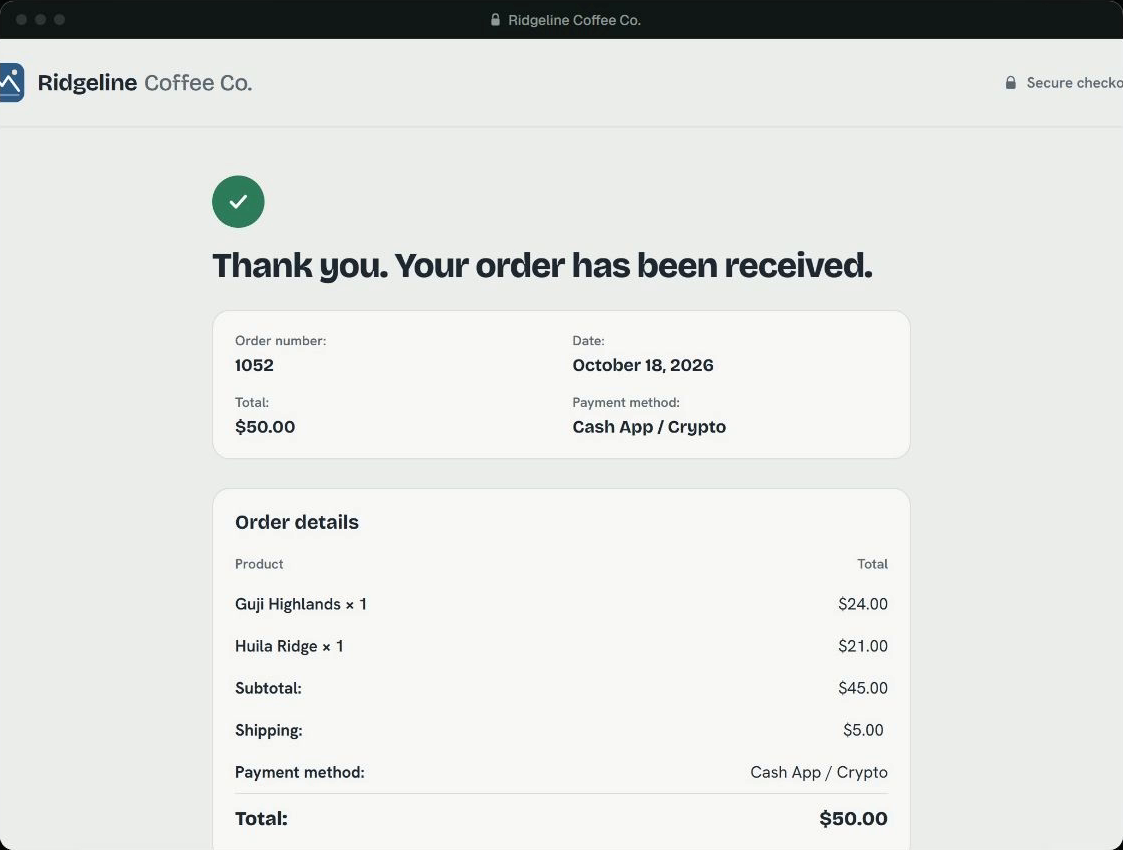
Customers pay in a secure window that opens over your checkout, so they never leave your store. As soon as the payment is confirmed, the order moves to Processing by itself.
Payment methods
Turn each one on or off and drag them into the order you want:
- Pay with crypto: USDC or USDT from any wallet or exchange, such as Coinbase, Kraken, Binance, MetaMask or Phantom.
- Pay by card: debit or credit card, for stores where Mintage Pay offers card payments. You receive USDC.
- Pay by app: Cash App in one tap, plus Apple Pay and Google Pay where available.
Supported networks: USDC on Base, Polygon and Solana, and USDT on Polygon, Solana and TRON. You choose which ones to offer in your Mintage Pay dashboard.
Why stores use Mintage Pay
- Paid to your own wallet. Every payment goes to the payout address you set. Nothing waits on us.
- Orders update themselves. Paid orders move to Processing. Unpaid orders are cancelled and restocked when the payment window closes.
- Nothing ships by mistake. Partial payments, late payments and amounts that do not match the order are put on hold with a clear note for you to review.
- Works with your setup. Classic checkout and the Cart/Checkout blocks, High-Performance Order Storage (HPOS) and WooCommerce Subscriptions.
- 57 store currencies. Prices in EUR, GBP, CAD, AUD and more are converted to the US dollar amount the customer pays, and the rate is noted on the order.
- Refunds from the order screen. Click “Refund via Mintage Pay”, send it from your wallet, and the order, stock and customer email update once it is confirmed.
- Optional stablecoin discount. Offer a saving, such as “Save 3% when you pay with USDC or USDT”.
- Payment reminders. Optionally email customers who started paying but did not finish.
- Test mode. Try everything with test money in the free sandbox before you go live.
- Secure by design. Every webhook is signed, and the plugin confirms each payment with Mintage Pay before it changes an order.
Get started in minutes
Install the plugin, click “Connect to Mintage Pay” and approve your store. There is no key to copy. Try it in the sandbox first, then apply for a live account. Full guide: https://mintagepay.com/docs/integrations/#woocommerce
External services
This plugin connects to the Mintage Pay API (https://app.mintagepay.com, or https://sandbox.mintagepay.com for test keys) to take payments. It is the payment service the plugin is for, so it does not work without it.
What is sent, and when:
- When you click “Connect to Mintage Pay” (or “Connect a test (sandbox) account”): your browser opens app.mintagepay.com (or sandbox.mintagepay.com) with this site’s address, its name, the plugin version, a random value and a code challenge (PKCE). You sign in there and approve this store. Your browser then comes back to this site with a one-time code, and the plugin sends that code and its secret to Mintage Pay to receive this store’s API key. Nothing is sent before you click.
- When you save the settings, reconnect the webhook, or activate, deactivate or delete the plugin: your API key (in the Authorization header), this store’s webhook URL and the store name, to check the key and to add or remove the webhook endpoint.
- When a customer chooses Mintage Pay at checkout: the order total and currency, the order number, a description (“Order #1042 from Your Store”), the thank-you and cancel page addresses, the WooCommerce order id and order key, the invoice expiry, and the customer’s billing email address. Mintage Pay emails the customer a receipt only if you turn off “Let WooCommerce send the order emails”; otherwise it writes to them only when they ask for a refund on Mintage Pay’s refund page. For an order paid by card, the email is also kept as part of the record of that card payment, in case the customer disputes the charge.
- With WooCommerce Subscriptions: the subscription’s recurring total, billing period and the renewal order numbers, the customer’s email address and name so Mintage Pay can send them each renewal’s payment link, and the store language.
- When an order is updated (a webhook from Mintage Pay, the thank-you page, the order screen, the “Hold stock” timer, or cancelling an order): the Mintage Pay invoice id, to read or cancel that invoice.
- With each request the plugin makes to the Mintage Pay API: the plugin’s name and version in the user agent (for example MintagePay-WooCommerce/1.21.0), so Mintage Pay can see which version of the plugin this store runs.
- On the checkout page, at most every 12 hours: a request for the list of networks you have turned on, to describe them under the payment method.
- On the checkout page, for the order total (remembered for 10 minutes per total, 30 minutes for the card form’s address): the total, the currency and this store’s address, to ask Mintage Pay which ways to pay (card, apps, crypto) it offers for that total and in which US states card payments are not available.
- In the customer’s browser, when the payment window is closed before paying: the Mintage Pay invoice id and the step the customer was on (for example “choose”), with no cookies, so Mintage Pay can count where buyers stop.
- Card payments: the card form shown inside the checkout is Mintage Pay’s own page from app.mintagepay.com. What the customer types there goes to Mintage Pay and the providers it uses for card payments (Stripe and Privy), as described in Mintage Pay’s privacy policy, not to this store.
Mintage Pay terms of service: https://mintagepay.com/terms.html
Mintage Pay privacy policy: https://mintagepay.com/privacy.html
Sawir-shaashado

Rakibaad
- Install. In WordPress go to Plugins > Add New Plugin, search for “Mintage Pay”, click Install Now, then Activate. WooCommerce must be active.
- Connect. Go to WooCommerce > Settings > Payments > Mintage Pay and click “Connect to Mintage Pay”. Sign in, check that the store address shown is yours, and click Approve. You come back to WordPress with everything set up and the payment method switched on. The settings page shows “Connected to (your business name)” when it is done.
- Try it with test money (optional). Click “Connect a test (sandbox) account” instead. A free sandbox account is instant at https://sandbox.mintagepay.com. Test mode is clearly marked in your admin until you switch to your live account. Guide: https://mintagepay.com/docs/sandbox/
- Go live. Apply at https://mintagepay.com/#apply. Once you are approved, sign in at https://app.mintagepay.com, add a payout address for each network you want to be paid on, and click “Connect to Mintage Pay” again. The plugin asks before it replaces your test connection.
- Choose your methods. Under WooCommerce > Settings > Payments, switch on “Mintage Pay: Pay by card” and “Mintage Pay: Pay with crypto” if you want them as separate options, and drag the methods into the order you want.
- Stay up to date. Tick “Update Mintage Pay automatically” on the settings page so fixes and new payment options install on their own.
Prefer to paste an API key? Create one in your Mintage Pay dashboard under Developers > API keys, paste it on the settings page, tick Enable and save.
Documentation
- WooCommerce guide: https://mintagepay.com/docs/integrations/#woocommerce
- Sandbox: https://mintagepay.com/docs/sandbox/
- Cash out to your bank: https://mintagepay.com/docs/cash-out/
- Developer docs and API reference: https://mintagepay.com/docs/
- Help: hello@mintagepay.com
SBI
-
Do I need a Mintage Pay account?
-
Yes. A sandbox account for testing is free and instant at https://sandbox.mintagepay.com. Live accounts are by application at https://mintagepay.com/#apply.
-
Does Mintage Pay hold my money?
-
No. Each payment goes straight to the payout address you set for that network in your Mintage Pay dashboard, including an exchange deposit address if you like. Guide to cashing out to your bank: https://mintagepay.com/docs/cash-out/
-
What does “Connect to Mintage Pay” do?
-
It creates an API key for this store in your Mintage Pay account and saves it here, so you never copy a key by hand. You approve it on Mintage Pay’s own site, signed in to your account, and the page shows the store address that asked. Only approve it if you just clicked Connect in your own WordPress. The account owner gets an email each time a store is connected.
-
Why don’t I see Pay by card or Pay by app?
-
Card and app payments are switched on for each store by Mintage Pay. If your live account does not show them yet, email hello@mintagepay.com. Card payments are also hidden for orders under $1 and for billing addresses in US states where card payments are not available.
-
What happens if the customer closes the payment window?
-
The order stays Pending payment until the payment window ends (60 minutes by default, and you can change it). Then it is cancelled and the stock is returned. If you turn on payment reminders, the customer gets one email with a link back to their payment.
-
What if the customer reaches the thank-you page before the payment is confirmed?
-
The plugin checks the payment itself and updates the order. Until it is confirmed, the page shows a short message and refreshes on its own.
-
How do I refund an order?
-
Click “Refund via Mintage Pay” on the order screen. The refund is created in your Mintage Pay dashboard, and the order notes get a “Send now” link. Because the money is in your wallet, you send the refund from there. Once it is confirmed, the plugin records the refund on the order, restocks the items if you ticked “Restock”, and WooCommerce emails the customer.
-
Will my customer get two emails?
-
No. By default your customer gets only the usual WooCommerce order emails. Turn off “Let WooCommerce send the order emails” if you also want Mintage Pay’s payment receipt sent.
-
How do subscriptions work?
-
With WooCommerce Subscriptions, WooCommerce keeps the schedule. On each renewal date Mintage Pay emails the customer a link to pay that renewal from their wallet. Nothing is charged automatically. When it is paid, the renewal order moves to Processing. If it is not paid in time, the renewal is marked Failed and WooCommerce Subscriptions handles it as a missed payment. Cancelling the subscription in WooCommerce cancels it at Mintage Pay too.
-
It is offered only when your store currency is supported and your store is connected to Mintage Pay. If something needs your attention, a notice in your WordPress admin says what to fix.
-
Which URL receives webhooks?
-
The settings page shows it (for example
https://example.com/wc-api/mintage_pay/). It is registered for you when you connect. If you move the store to a new address, click “Reconnect webhook” on the settings page. -
Is anything logged?
-
Errors are written to WooCommerce > Status > Logs under the source
mintage-pay. Turn on “Debug log” for more detail. Your API key and webhook secret are never logged. -
What does uninstalling remove?
-
Deactivating the plugin pauses this store’s webhook at Mintage Pay, and reactivating reconnects it. Deleting the plugin removes its settings. Your orders and order notes stay.
Dibu-eegisyo
Ma jiraan wax dibu-eegis ah oo ku saabsan kaabahan.
Ka-qaybgalayaasha & Horumariyayaasha
“Mintage Pay for WooCommerce” waa softiweer il furan. Dadka soo socda ayaa wax ku biiriyay kaabahan.
Ka-qaybgalayaasha
Ku tarjun “Mintage Pay for WooCommerce” luqaddaada.
Ma xiisaynaysaa horumarinta?
Baadh koodka, fiiri bakhaarka SVN, ama iska qor diiwaanka horumarinta adigoo adeegsanaya RSS.
Isbeddellada
1.21.0
- New: “Refund via Mintage Pay” on the order screen. It sets up the refund in Mintage Pay and adds a “Send now” link to the order notes. Once you send it from your wallet, the order, the stock and the customer’s refund email update by themselves.
- New: a “Return my funds” page on your store for customers who paid by card.
- Developers: a refund requested through the WooCommerce REST API also creates the refund in Mintage Pay. The API returns an error until the refund has been sent.
1.20.0
- The “Pay by app” description now says what customers pay with: Cash App, plus Apple Pay and Google Pay where available. A description you wrote yourself is kept.
1.19.0
- The card form fills in from the customer’s billing details, so they type less.
- Apple Pay and Google Pay are only shown where they are available.
1.18.0
- New: one-click “Connect to Mintage Pay”. There is no API key to copy.
- New: a “Get started” box on the settings page, and an “Update Mintage Pay automatically” setting.
- Fix: app icons no longer show where those apps are not offered.
- Tested with WooCommerce 11.2.
1.17.0
- New: “Pay with crypto” can be its own payment method at checkout, next to “Pay by card” and “Pay by app”.
- Pay by app shows Cash App, Apple Pay and Google Pay.
Earlier versions
- Card payments, a payment window that opens over your checkout, WooCommerce Subscriptions, 57 store currencies, payment reminder emails, an optional discount for paying in stablecoins, refunds recorded on orders, and support for the Cart and Checkout blocks.